
AI Chat
A conversational assistant for quick one-off datasets and documents.
Use AI Chat when you want a quick dataset, a few mock records or a document, rather than a full linked schema. Open it with AI Chat in the workspace header.
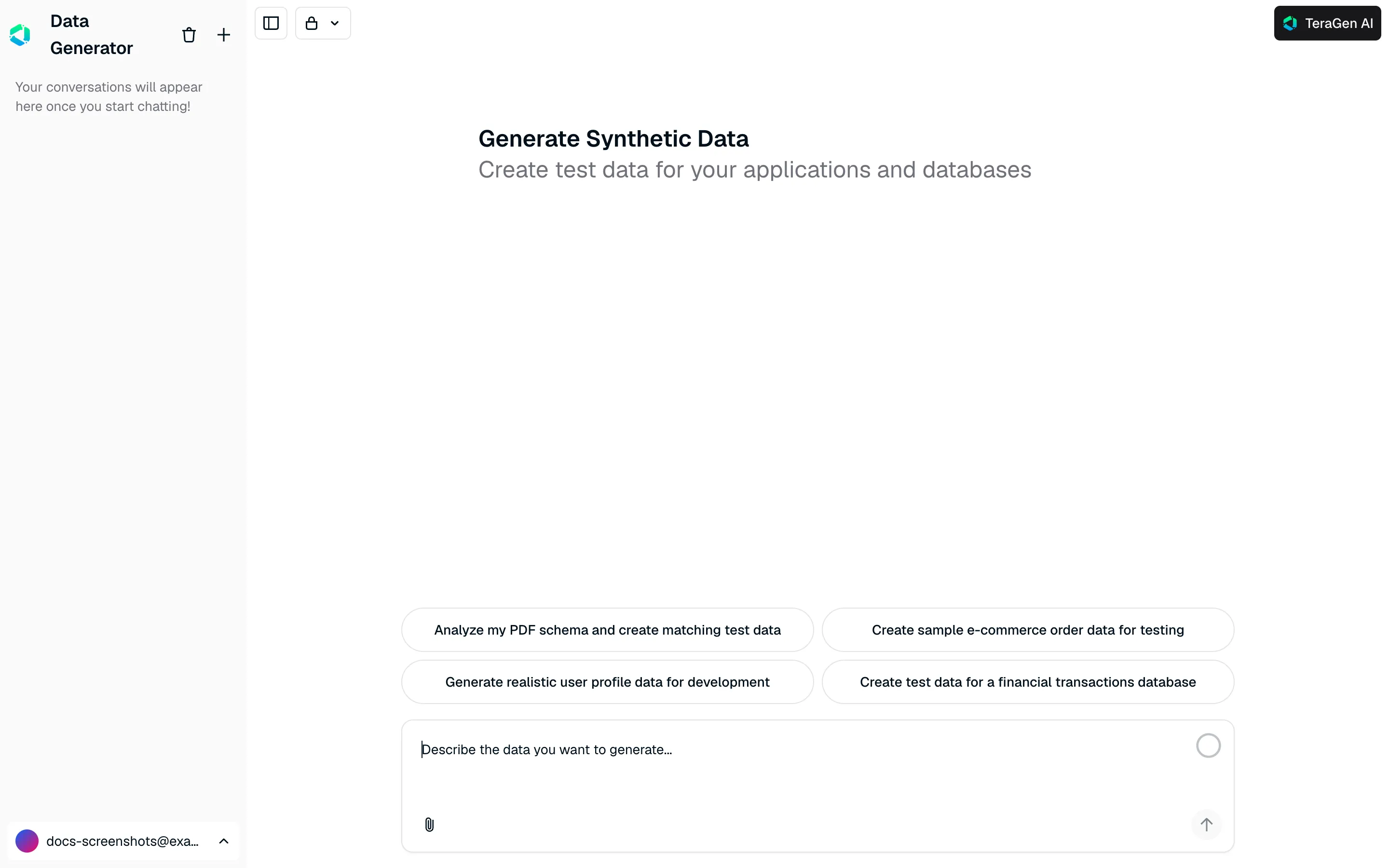
Ask for data
- Type what you need in plain English, e.g. “20 sample e-commerce orders with order ID, customer, items and total”, or click one of the example prompts to start.
- To work from a file, click the paperclip and attach a JPEG, PNG, PDF, CSV or Excel file (up to 10 MB). For example, attach a PDF of a schema and ask for matching test data.
- Longer answers open in a side panel as a document, code or a spreadsheet that you can edit.
Manage your chats
- Your conversations are saved in the left sidebar. Click + to start a new chat, or the trash icon to delete all chats.
- Chats are Private (only you can open them) by default. Use the lock menu at the top to make a chat Public, so anyone with the link can open it.
- Click the logo at the top of the sidebar to go back to the studio.
When to use the studio instead: if you need several tables that link to each other, more than a handful of rows, or load scripts for a database, use the four-step workspace. AI Chat is best for one-off samples.