
4. Download and load
Export your data and load it into your database.
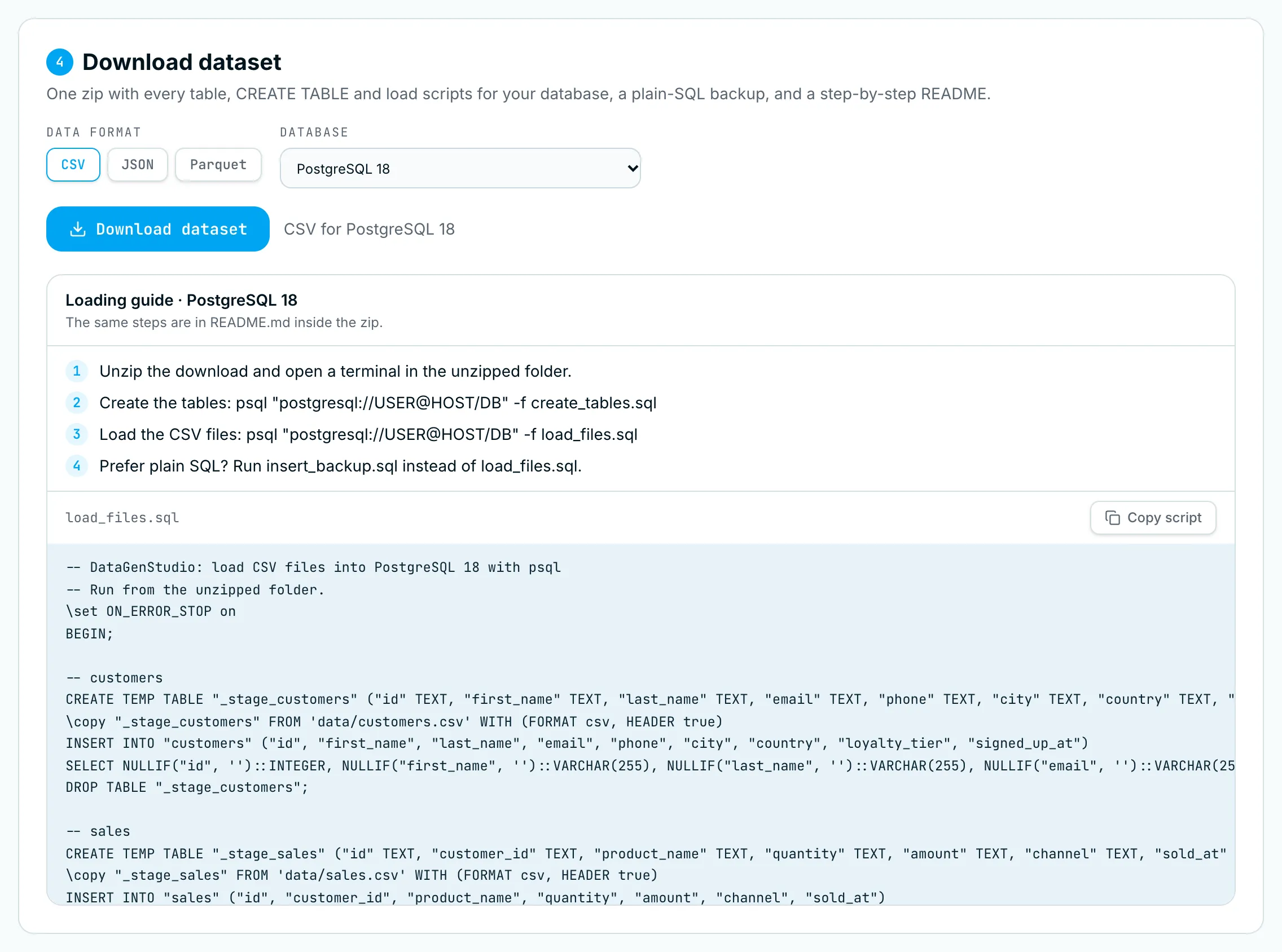
Download the dataset
- Under Data format, choose CSV (the default), JSON or Parquet.
- Under Database, pick your database and version, e.g. PostgreSQL 18. See Supported databases for the full list.
- Click Download dataset. The label beside it confirms your choice, e.g. CSV for PostgreSQL 18.
You get a single zip, built in your browser. What’s in the download lists every file.
Load it into your database
The Loading guide under the button gives numbered steps for the database you picked. For PostgreSQL they are:
- Unzip the download and open a terminal in the unzipped folder.
- Create the tables:
psql "postgresql://USER@HOST/DB" -f create_tables.sql - Load the data files:
psql "postgresql://USER@HOST/DB" -f load_files.sql - Prefer plain SQL? Run
insert_backup.sqlinstead ofload_files.sql.
Replace USER, HOST and DB with your own connection details. The guide shows the full load script below the steps. Click Copy script to copy it. The same steps are in README.md inside the zip.
Load into a test database, not production. The scripts create tables and insert rows. Run them against a database where that’s safe.
Other databases
If your database isn’t listed:
- Choose Other database… at the bottom of the Database list.
- Type the product name and version, e.g. IBM Db2 · 11.5, and click Look up.
- Read the notes that appear. They describe the column types and any limitations the AI found for that product.
- Download as usual.
If the product isn’t a SQL database, you get the data files only.
Always review AI-generated scripts before running them. “Other database” profiles are worked out by AI rather than tested against that product.