
2. Generate data
Create linked rows and check that every reference resolves.
Run a generation
- In 2 · Generate data, choose how many rows per table: 10, 100, 500 or 1,000.
- Click Generate data.
A progress bar shows the percentage and elapsed time as it works through two stages:
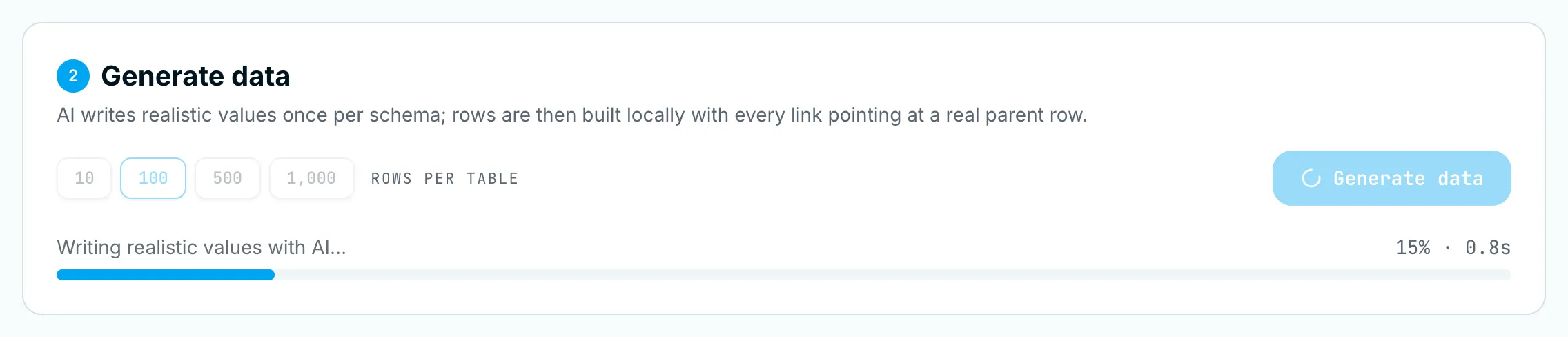
- Writing realistic values with AI… — the AI writes pools of realistic values (product names, ticket subjects, enum values…) once for your schema.
- Building linked rows… — rows are assembled in your browser. Parent tables are built first, and every link is filled from a real parent key.
Small runs take a few seconds. 1,000 rows per table takes around 10 seconds the first time, and is faster on repeat runs.
Check the results
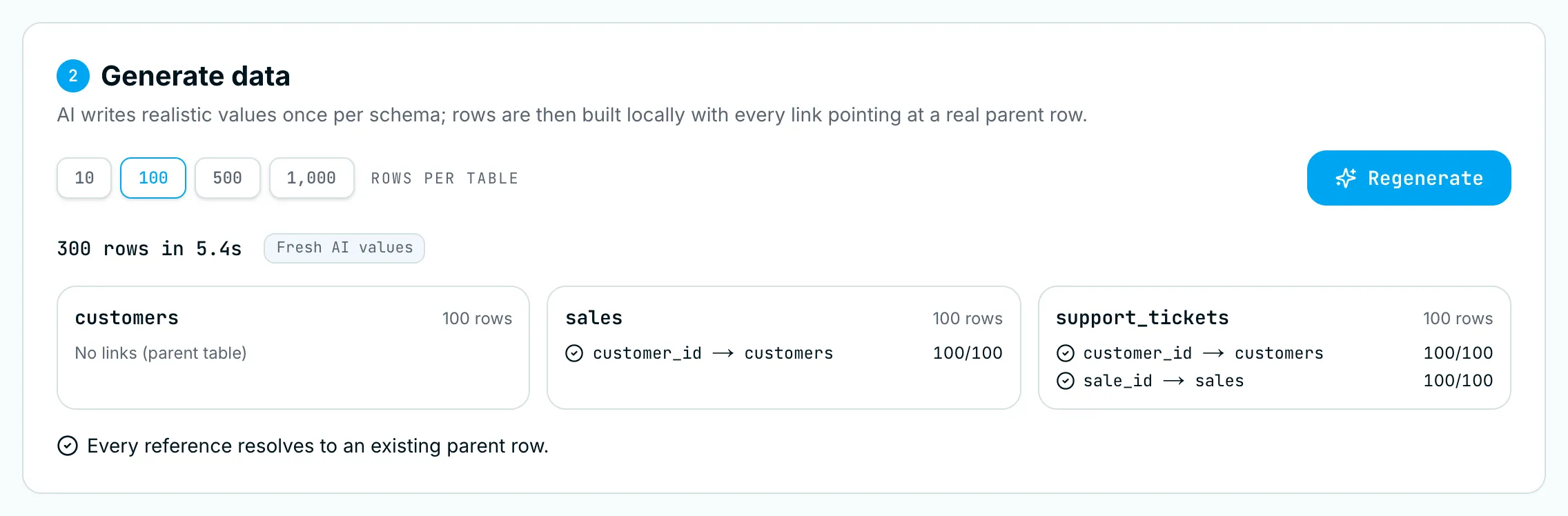
When it finishes you see:
- Totals: rows generated and time taken, e.g. 300 rows in 5.4s.
- Value source: where the values came from.
- Fresh AI values — the AI wrote new values for this schema.
- AI values reused from cache — the schema hasn’t changed, so earlier AI values were reused.
- AI values (some built-in) — the AI covered some columns and built-in generators filled the rest.
- Built-in values — the AI was unavailable or your daily AI limit was reached.
- No AI values needed — your schema has no columns that use AI.
- A card per table with its row count, and a ✓ check per link, e.g.
customer_id → customers 100/100. The numbers mean 100 of 100 rows point at an existing customer. - “Every reference resolves to an existing parent row” when all links are valid.
Regenerate
The button changes to Regenerate after the first run. If you haven’t changed the schema, the AI values are reused from cache, so regenerating is near-instant and doesn’t use one of your daily AI actions.
If you edit the schema after a run, you’ll see “Schema changed since this run. Regenerate to update.” Regenerate so the data matches your schema.