
1. Define your schema
Start from a preset, draft with AI, or import an existing model — then fine-tune it.
A schema is the set of tables you want, their columns, and the links between them. There are three ways to start, and you can mix them: load a preset, then add a table by hand, for example.
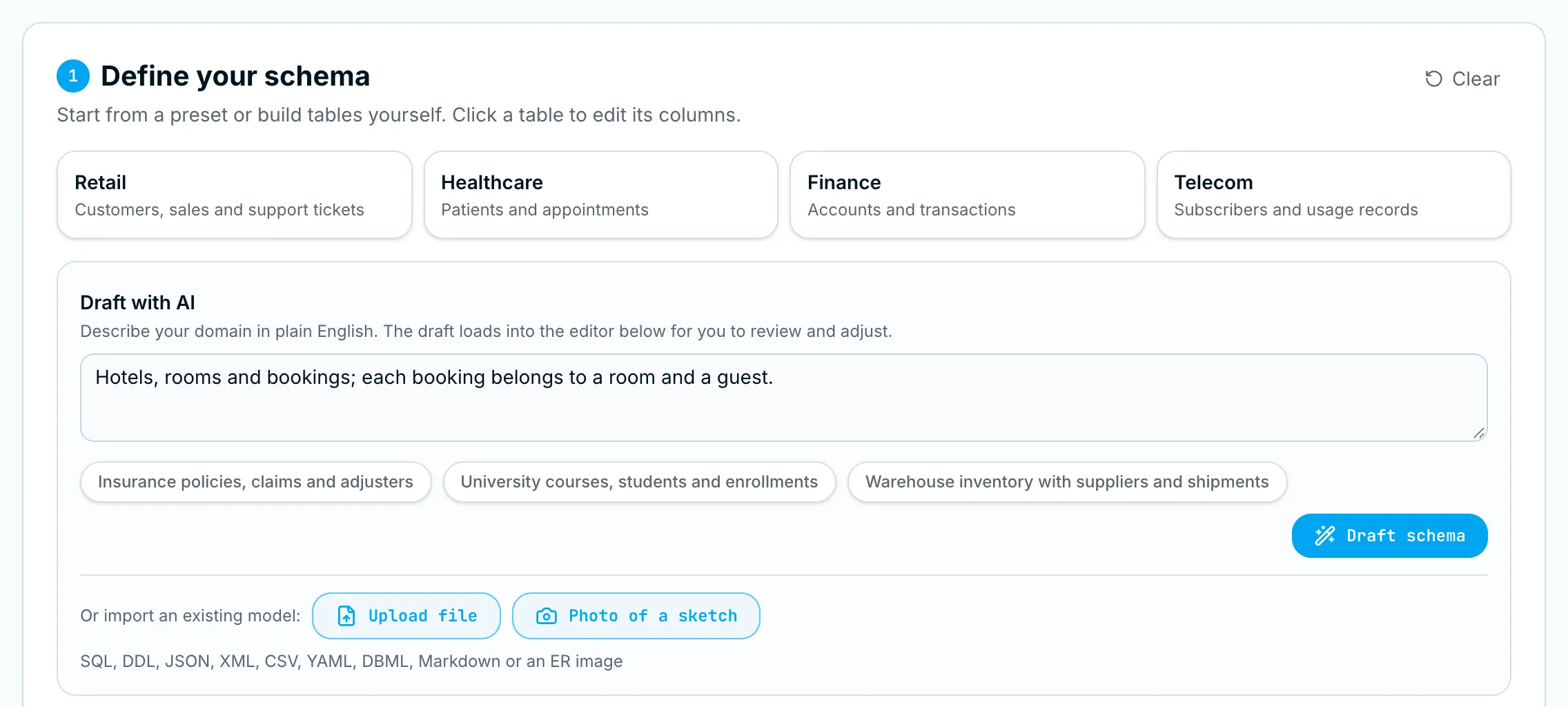
Your work is saved automatically in this browser. To start over, click Clear in the top-right corner of step 1.
Option A: Start from a preset
Click Retail, Healthcare, Finance or Telecom. The preset is highlighted with a check mark and its linked tables load into the editor below.
| Preset | Tables |
|---|---|
| Retail | customers, sales, support_tickets |
| Healthcare | patients, appointments (includes long notes and PDF referral letters) |
| Finance | accounts, transactions (includes JSON metadata) |
| Telecom | subscribers, usage_records |
Presets are the fastest way to see the whole workflow, and a good base to edit into your own schema.
Option B: Draft with AI
- In the Draft with AI box, describe your domain in a sentence — or click one of the example chips, such as Insurance policies, claims and adjusters.
- Click Draft schema (or press ⌘/Ctrl + Enter).
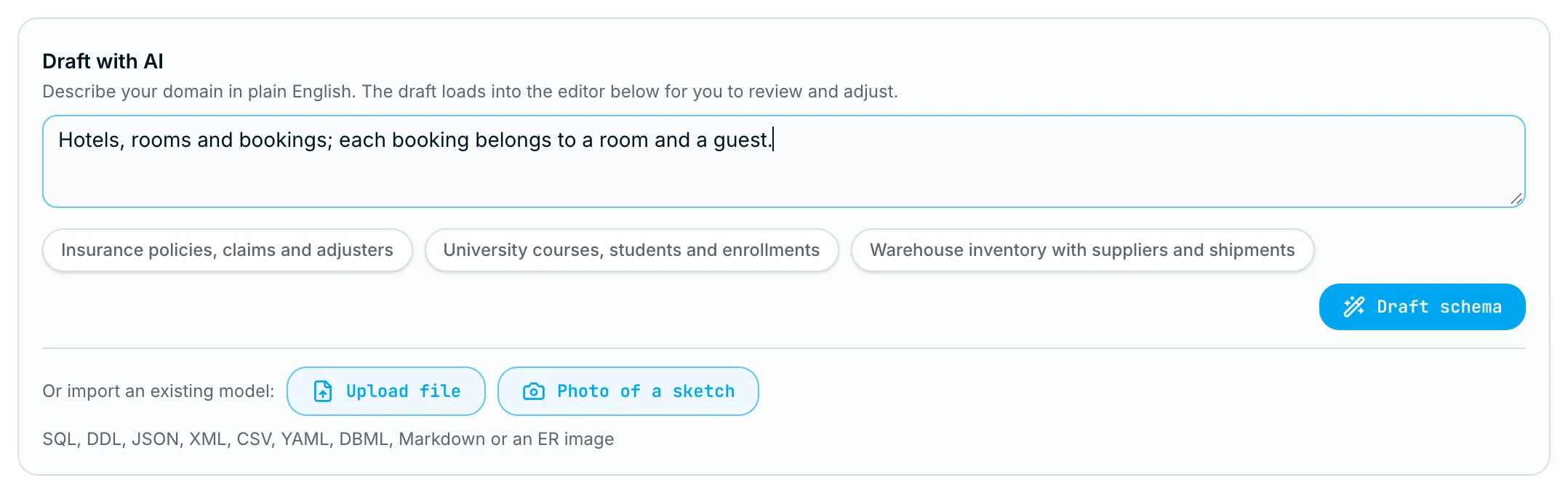
In a few seconds the AI drafts 1–4 linked tables and loads them into the editor, along with a Domain context sentence:
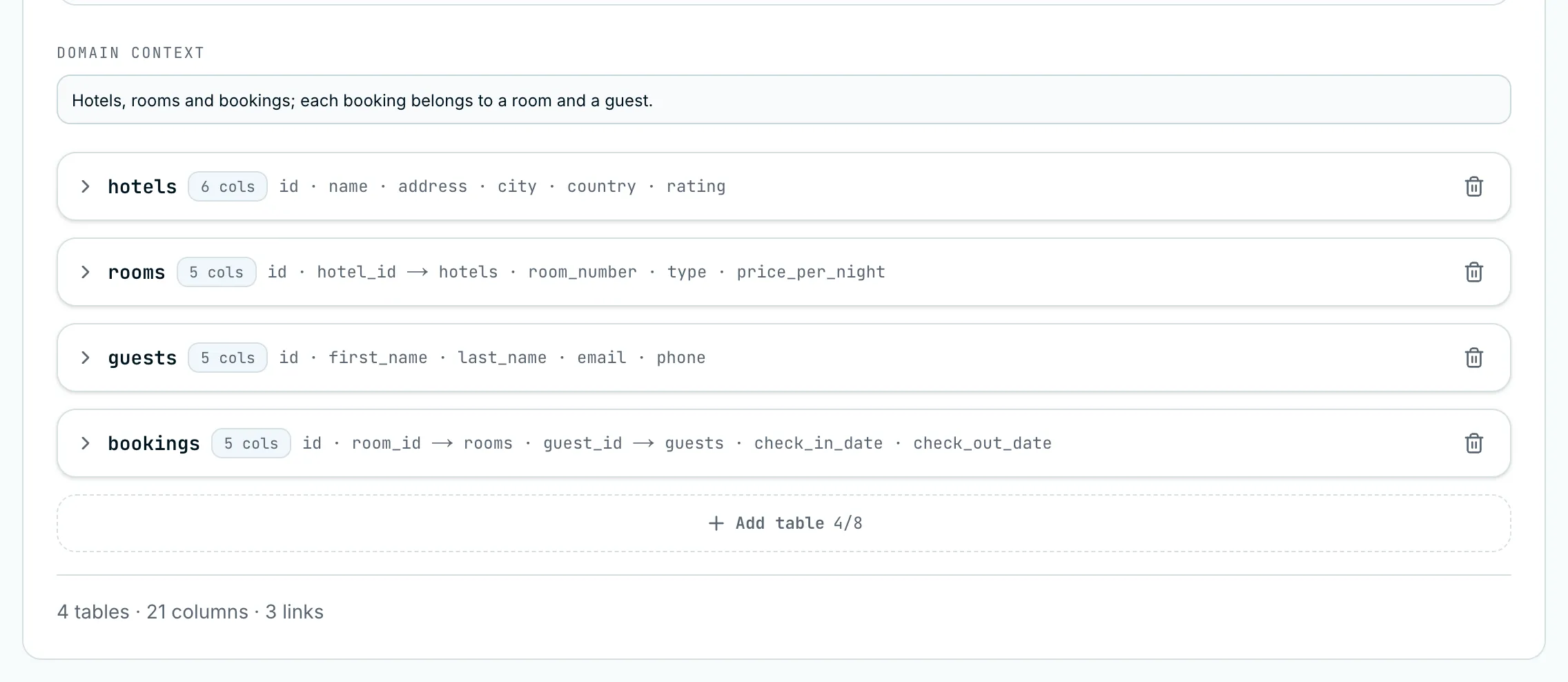
Write prompts that name the entities and how they relate. “Hotels, rooms and bookings; each booking belongs to a room and a guest” gets you better links than “hotel data”.
Option C: Import an existing model
Under Or import an existing model, choose one of:
- Upload file —
.sql,.ddl,.json,.xml,.csv,.txt,.yaml,.yml,.dbml,.md(up to 2 MB), or an ER-diagram image.png/.jpg/.jpeg/.webp(up to 5 MB). This covers SQL DDL, ER-tool exports (Erwin, Visio, MDM tools), data dictionaries and JSON schemas. - Photo of a sketch — on a phone this opens the camera. Photograph a whiteboard or paper sketch of your model.
Every import opens a review screen first. It lists each table, the type chosen for each column, the links found, and any sample values:
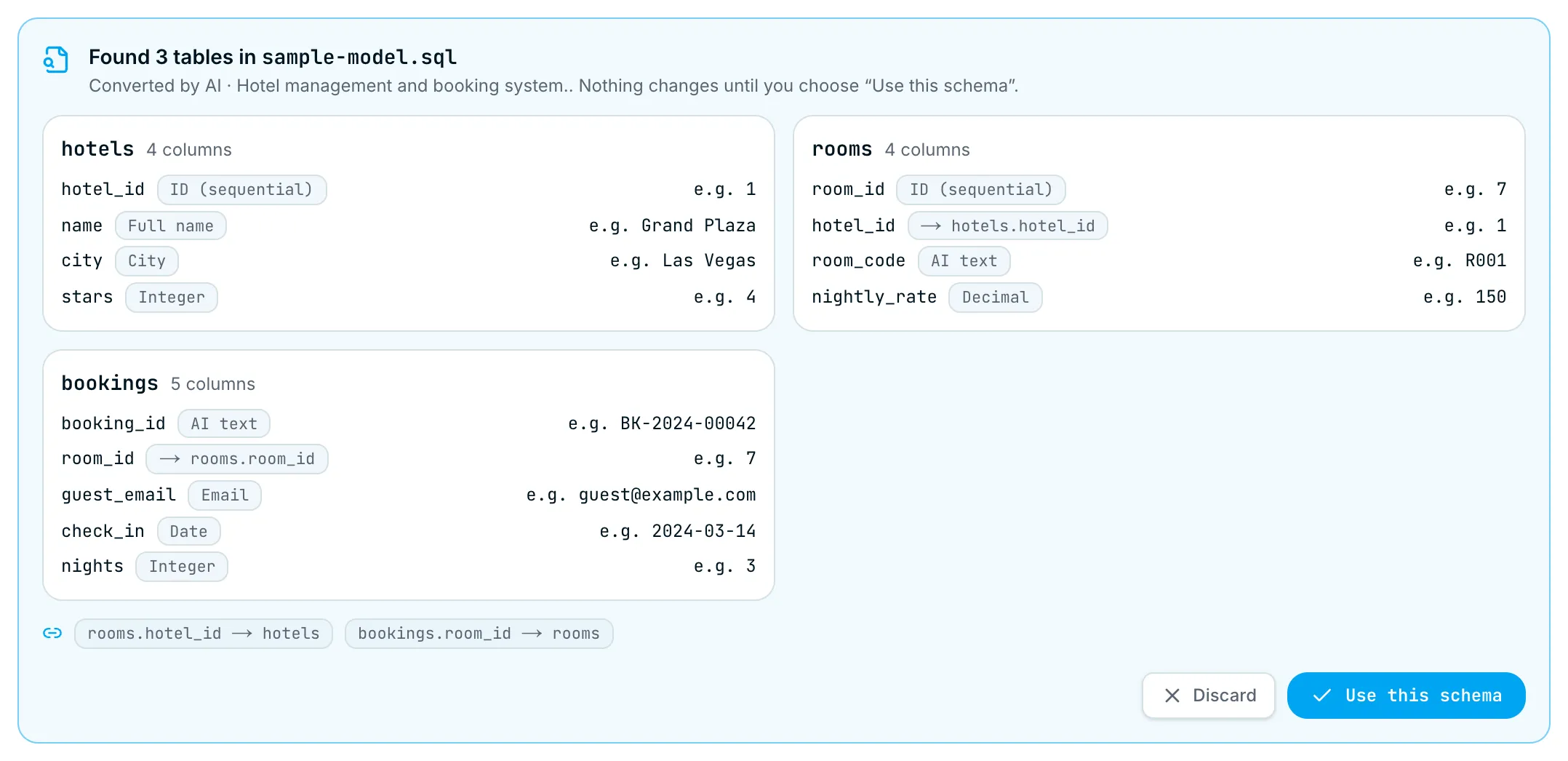
Check the types before you continue. In the example above, the AI read the hotel name column as Full name (a person’s name); you would change it to AI text in the editor. Then:
- Click Use this schema to load it into the editor, or
- Click Discard to cancel. Nothing changes until you choose.
Good to know:
- Primary keys become ID/UUID columns and foreign keys become links. Original names are kept, in
snake_case. - Include one example row (an
INSERT, or a CSV/JSON row) and those values become sample values that generation imitates. In the example,BK-2024-00042teaches the generator your booking-ID format. - A JSON file already in DataGenStudio’s schema format loads instantly, without AI.
- If the AI service is unavailable, SQL/DDL and CSV files are still read by a built-in parser. The review screen tells you when this happens.
- Erwin’s native binary files (
.erwin) can’t be read directly. Export to XML or SQL from Erwin first, or upload an image of the diagram.
Tips for sketch photos
- Draw one box per table, with the table name at the top and one column name per line inside.
- Draw a line between related tables. Crow’s feet or an arrow on the “many” side tells the AI which table gets the link column.
- Column names drive types:
notesordescriptionbecome long text,attachmentorscanbecomes a PDF,payloadormetadatabecomes JSON. - Neat block lettering on a plain background reads best.
Edit tables and columns
Each table appears as a one-line summary showing its columns and links (customer_id → customers). Click a table to expand it:
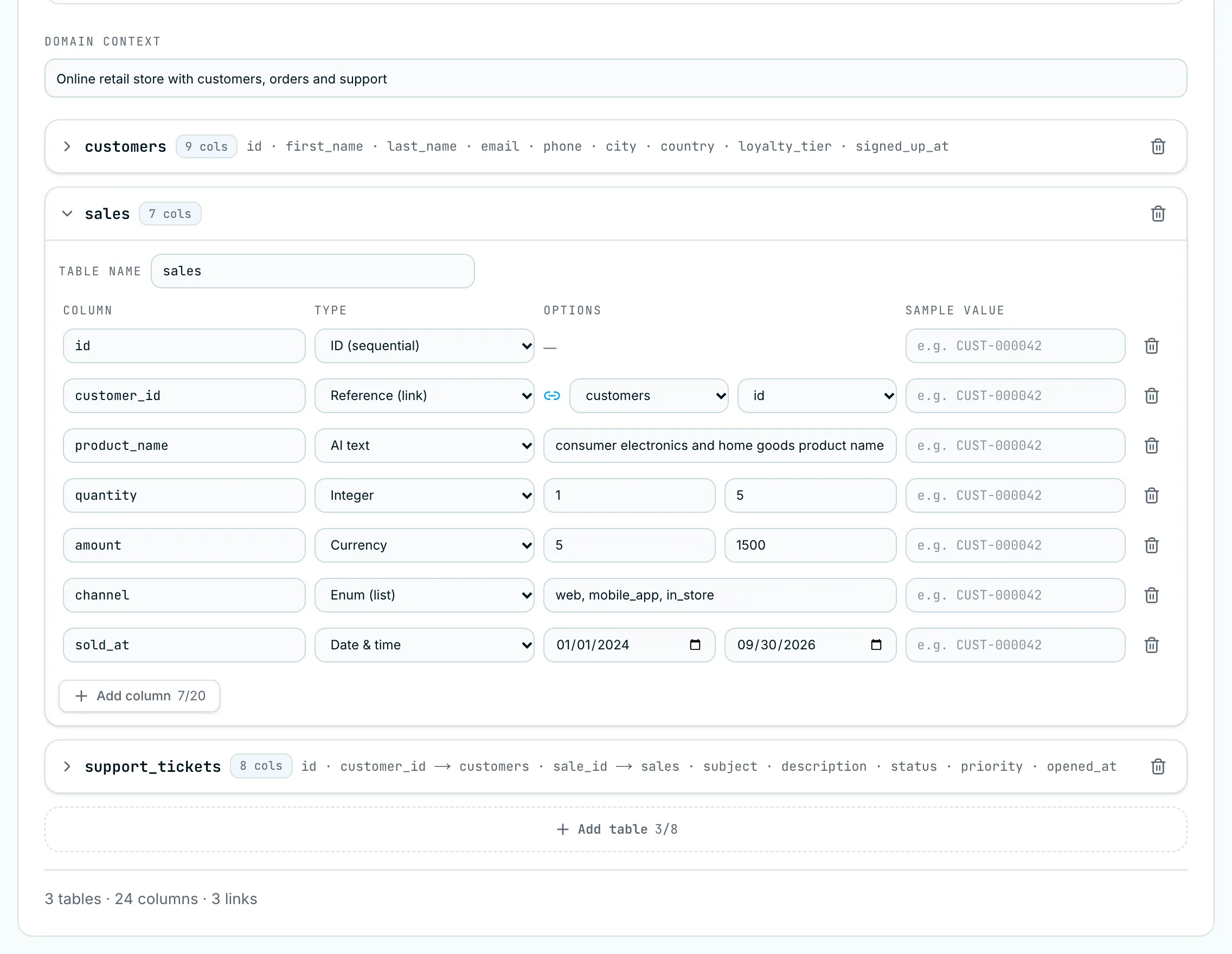
For each column you set:
| Field | What it does |
|---|---|
| Column | The column name, as it will appear in your database |
| Type | What kind of values to generate. See Column types for all 24 |
| Options | Depends on the type: min/max for numbers, a date range, the list of values for an enum, a hint for AI text, or the target table and key for a link (🔗) |
| Sample value | Optional. Generated values copy its shape, e.g. CUST-000042 → CUST-000001, CUST-000002… |
You can also:
- Rename a table in Table name. Links that point to it update automatically.
- Add column at the bottom of a table (up to 20), or remove one with the trash icon.
- Add table below the last table (up to 8), or delete a table with its trash icon.
- Fill in Domain context: one sentence about your data, such as “Online retail store with customers, orders and support”. It helps the AI write values that fit.
The footer shows a running total, e.g. 3 tables · 24 columns · 3 links. If a warning appears under the editor (for example, a link with no target table), fix it before generating.